
How to Set Up a Strong Foundation in WordPress?
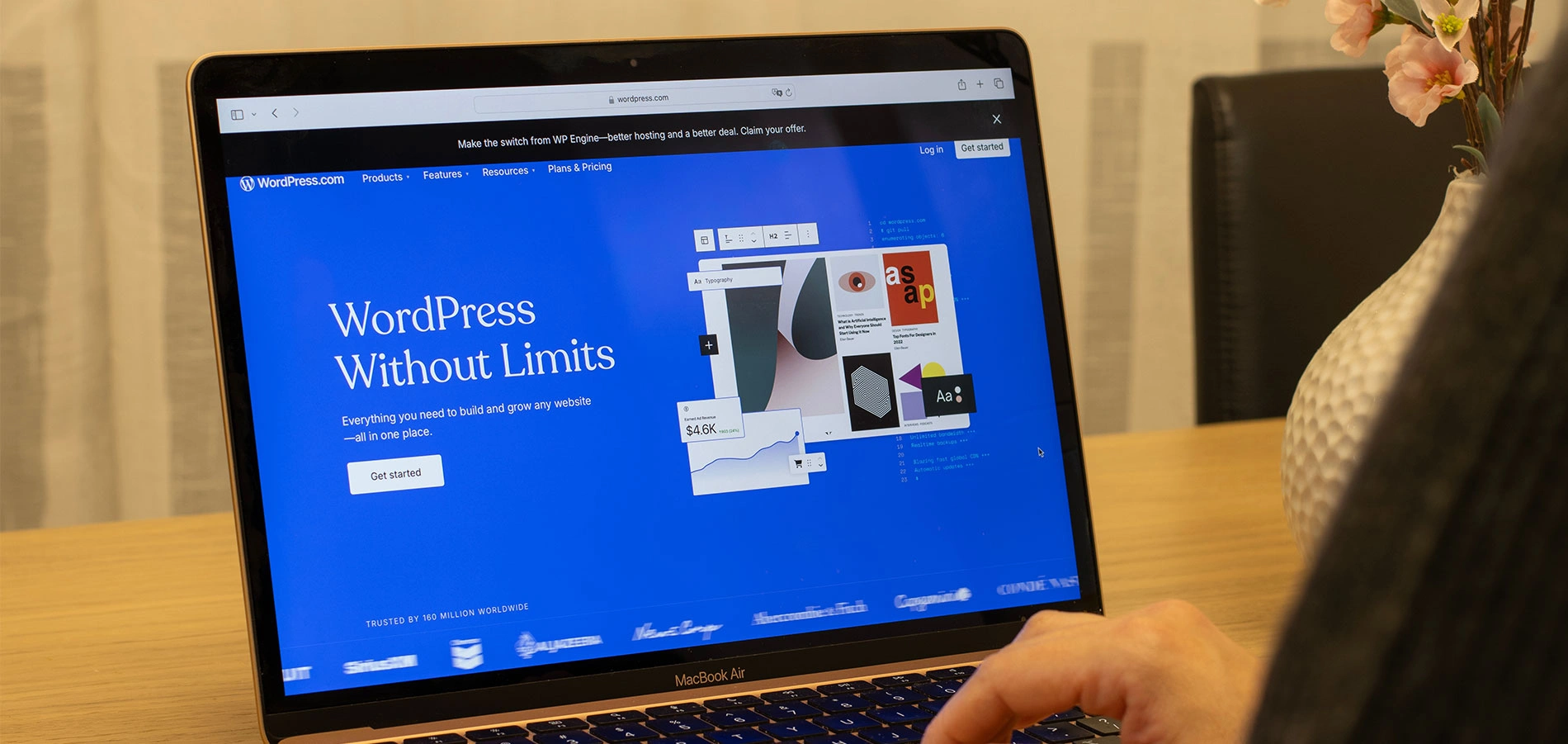
WordPress makes it easy for anyone to launch a website, making it a go-to CMS platform for businesses and individuals. That simplicity, however, often shifts towards design and content while the underlying structure is overlooked. A website may look polished on the surface, but without a solid foundation, it can struggle to perform reliably over time.
This article outlines the essential technical steps needed to build a reliable WordPress website that is secure, scalable, and built for long-term growth.
Step 1. Select the Right Hosting Environment.
A solid hosting provider ensures your website is fast, stable, and secure from the beginning. Without proper hosting, even the best website will struggle with downtime, poor speed, and security risks.
This makes selecting the right hosting environment one of the most important decisions when setting up a WordPress website. Here’s how you can do it:
1. Select the Right Hosting Environment
When selecting a hosting environment, there are a few key factors you should prioritise from the start.
Use reputable hosting providers
Trusted provides like Cloudways, SiteGround, and WP Engine focus on server security, optimisation, auto-backup, and monitoring, which are commonly overlooked by low-cost hosting solutions.
The wrong hosting decision may result in slow loading speeds, unpredictable downtime, outdated PHP versions, and even loss of data because of poor backup processes.
Check for essential features
Ensure the hosting plans support modern features like PHP 8+, SSD storage, and server-level caching. These features help in improving website speed and reducing compatibility issues with WordPress plugins and themes, making the site easier to manage and scale over time.
2. Enable SSL and Basic Security
Basic security measures form the foundation of a safe and trustworthy website.
Enable HTTPS (SSL) from day one
HTTPS encrypts the data being passed between users and your site, protecting logins, forms, and user data. It also helps to establish trust with your visitors, as browsers will warn users when accessing an insecure site.
From an SEO perspective, Google will give preference to sites that use SSL, so turning on HTTPS support early on will save you from potential ranking and credibility problems down the line.
Redirect all HTTP links to HTTPS to avoid duplicate content issues
Redirecting HTTP to HTTPS helps search engines consider your website as a single version instead of multiple versions with HTTP and HTTPS URLs. This will help you avoid duplicate content issues.
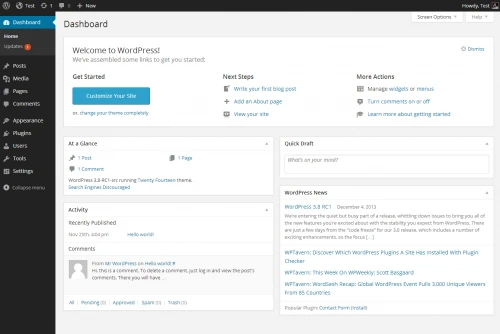
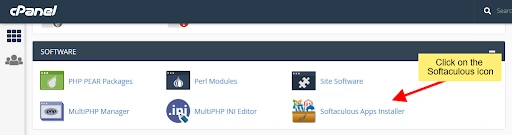
3. Complete a Fresh WordPress Installation
Starting with a clean and up-to-date WordPress installation helps eliminate common performance and security issues from the beginning.
Use the latest WordPress version and remove default themes and plugins
Old or unnecessary files can raise security risks and slow down your website. A clean installation will minimise the chances of conflicts, enhance website performance, and allow your site to operate on the latest and most stable version of WordPress.
Set up a staging environment
A staging environment gives you the opportunity to test updates, plugins, and changes before applying them to your live site. This will help you avoid site-breaking errors and give you a smoother development process.
Step 2. Use a Lightweight and Flexible Theme
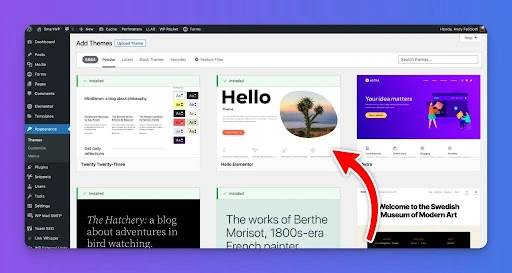
Your theme forms the visual framework of your site. A heavy or poorly coded theme slows down everything and creates long-term technical debt. Because of this, theme choice directly impacts site performance, maintainability, and scalability.
1. Choose a Performance-Focused Theme
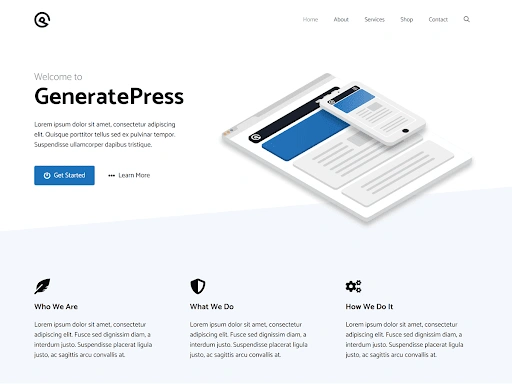
Lightweight themes like Astra, GeneratePress, and Kadence are ideal for your site. They are designed with clean, optimised code that loads faster and avoids unnecessary scripts or layouts, reducing server load.
Fast-loading websites are always best for user experience and search engine optimisation. They also convert more visitors into customers because they are responsive.
2. Ensure Builder Compatibility
Confirm the theme supports your builder, whether you are using WPBakery, Elementor, or Gutenberg. If the theme is not fully compatible with the selected builder, it may cause layout problems, slow down the editing process, and make the theme or plugin update unstable.
By making sure that the builder is compatible, you can enjoy a smoother process, fewer technical issues, and stable updates as your WordPress website develops.
3. Avoid Nulled or Unverified Themes
Never use unauthorised themes. Nulled or unverified themes can have hidden malware, spam URLs, or malicious scripts that can affect your entire website without any warning signs. Since these themes are not updated for security, they can pose a threat to your website by making it vulnerable to exploits, compatibility problems, and broken functionality.
Even a single malicious theme can cause harm to your WordPress core, result in data loss, affect search engine rankings, and, in extreme cases, put your entire hosting account at risk.
Step 3. Install Only Essential Plugins
Plugins add functionality, but too many create complexity, slow speed, and security issues. Because of this, it’s important to be selective about the plugins you install.
1. Minimise Plugin Usage
Install only what’s absolutely necessary because each plugin you install will add more code to your website. The more code you have, the more scripts that are running, and the more chances of conflicts that can slow down your website.
Installing only what is necessary will ensure that your WordPress website will be easier to manage.
2. Use Trusted & Essential Plugins
A few carefully chosen plugins can cover essential functionality without adding unnecessary overhead.
SEO: Yoast or RankMath
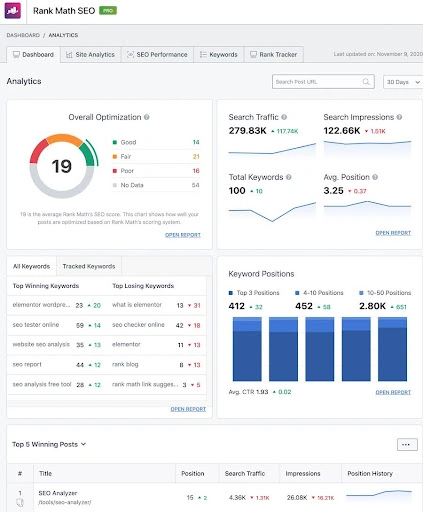
SEO plugins such as Yoast SEO and RankMath assist with search engine optimisation by taking care of metadata, sitemaps, and other SEO factors on your website. They also ensure that your website is optimally indexed by search engines, fix technical SEO issues, and make it simpler to optimise your content.
Caching: LiteSpeed / WP Rocket
Caching plugins such as LiteSpeed and WP Rocket assist with page loading speed by caching static copies of your webpage and preventing repeated server requests. Browser and server caching can greatly improve the loading speed of your webpage and reduce server load.
Security plugins such as Wordfence and Sucuri
Security plugins such as Wordfence and Sucuri safeguard your website from malware, brute-force attacks, and unwanted logins by preventing malicious activity. Having a secure website is essential for long-term stability and helps prevent data breaches, downtime, and damage to your website’s reputation.
For WordPress sites with eCommerce functionality, choosing the right eCommerce integrations for better processes, including payments, inventory, shipping, and automation, is just as important.
3. Test for Plugin Conflicts
Test your pages after installing each plugin to easily spot conflicts, as some plugins override scripts or styles used by your theme or page builder. Such conflicts are common causes of layout breaks or unexpected behaviour on the frontend. By spotting such problems immediately, you can save time spent troubleshooting and ensure your site remains stable as you add new plugins.
Step 4. Optimise for Speed & User Experience
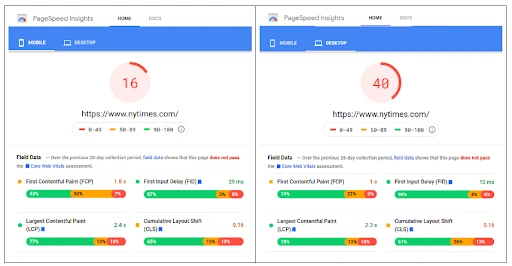
Speed has a direct effect on SEO, user satisfaction, and conversions. Improving it starts with applying the right performance optimisation techniques.
1. Enable Caching & File Optimisation
Minify CSS/JS and enable page caching to make the files smaller and minimise the number of server requests needed to display a page. Minification involves the removal of unnecessary characters from CSS and JavaScript files, while page caching involves the delivery of cached pages instead of executing PHP and database queries for every page request.
By implementing these optimisations, the page load speed will be greatly improved.
2. Optimise Images
Convert images to WebP to significantly reduce file sizes, as WebP images are typically 30 – 50% smaller than JPEG or PNG formats.
Smaller image files load faster, which improves overall page speed and delivers a noticeably better experience on mobile devices and slower networks.
3. Use a CDN
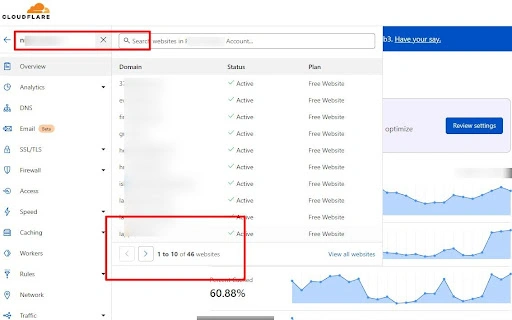
Add Cloudflare or BunnyCDN to spread your website’s content around the world using a network of servers. A CDN, or Content Delivery Network, is a service that stores copies of your website’s static files, like images, CSS, and JavaScript files, on servers around the world and serves them up from the nearest server to your visitors.
This helps to reduce latency and improve the loading time for your website’s visitors around the world.
Step 5. Strengthen WordPress Security
Security is part of your foundation, not an afterthought. A few core security steps can significantly reduce long-term risks.
1. Apply Essential Security Practices
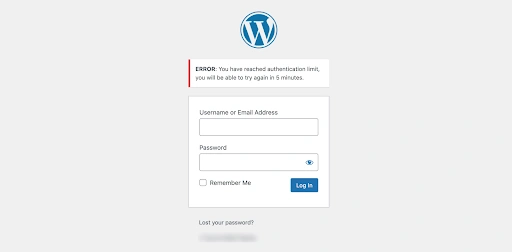
Enable 2FA for admin accounts to protect your WordPress login from brute-force attacks. Two-factor authentication provides an additional layer of verification after entering your password, so even if your login details are stolen, attackers won’t be able to log in to your admin area. This greatly enhances the security foundation of your site.
2. Setup Backup & Disaster Recovery
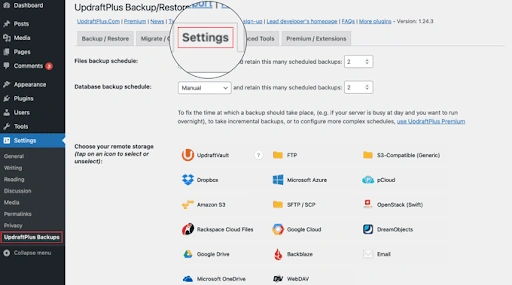
Use UpdraftPlus or Jetpack for automated backups to protect your WordPress site against unexpected failures. Automated backups mean that if your site ever breaks, gets hacked, or suffers from data loss, you can easily restore it. This saves you time and money. Having a backup plan in place is an important part of disaster recovery.
3. Monitor Activity
Use security plugins to track logins and changes so you can see who is accessing your site and what actions are being performed. Activity monitoring enables you to identify unusual behaviour, like failed login attempts or unauthorised modifications, before it escalates into a bigger security problem.
This way, you can react quickly and have better control over your WordPress environment.
Step 6. Configure SEO & Essential Site Settings
A properly configured structure helps search engines understand your site from the beginning.
1. Set Up Permalinks & Branding
Clear URLs and consistent branding help make your website easier to understand and trust, both for users and search engines.
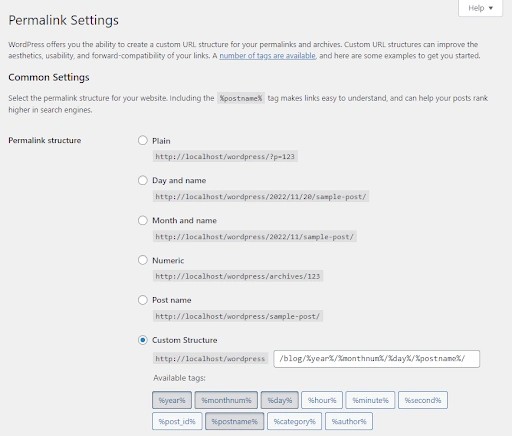
- Use the “Post Name” structure
The “Post Name” permalink structure will result in a clean and readable URL that is easier to understand for users and search engines. This permalink structure is beneficial for SEO, as it will help in making links shareable and will not result in long URLs with parameters that are difficult to understand. - Add a favicon, site name, and tagline
Including branding features such as a favicon, site name, and tagline will also go a long way in establishing trust and professionalism. These features will enhance the recognition of your brand, make it easier to identify in browser tabs and search engine results, and also enhance the user experience
2. Configure SEO Plugin
Generate a sitemap and optimise meta tags to help search engines crawl and understand your website more effectively. A sitemap helps search engines navigate your most important pages, while a well-optimised meta title and description help your content show up better in search engine results pages.
These settings combined help with indexing, visibility, and SEO performance right from the beginning.
3. Submit Sitemap to Search Console
Verify your domain and submit your sitemap so search engines like Google can start tracking and indexing your pages properly. This verifies ownership of the site, aids in the search engine’s discovery of new and updated content, and enhances overall visibility.
Verification and submission to the sitemap are essential for faster indexing and are the foundation for improved rankings in the future.
The Takeaway: Build the Foundation Before You Build the Design
A WordPress website is not just about design. Performance, security, and scalability are essential for long-term success. With the right technical foundation in place, your site becomes easier to manage and ready to grow. For businesses that want a scalable, performance-driven setup from day one, working with an experienced WordPress development partner like Designpluz can help ensure long-term success.