
How to Avoid Using Too Many Plugins in WordPress?

WordPress is one of the most popular open-source content management systems (CMS) that powers over 40% of the world’s websites, including personal blogs and e-commerce stores. One of the reasons behind this popularity is the easy-to-use plugins that simplify adding features to your website without writing a single line of code.
However, installing too many plugins can negatively affect website performance, security, and long-term stability. Each plugin introduces additional scripts, styles, and database queries to your website, which, over time, can slow down page load speeds and increase the risk of conflicts during updates.
Alternatively, you can rely on WordPress core features and use lightweight custom code wherever possible. This simple step can help reduce unnecessary dependency on plugins, while keeping the website fast, smooth, and easier to maintain or scale.
Tip 1. Use Custom Code Instead of Plugins
Even if you don’t have a background in coding or website development, you can implement minimal custom code for common website features instead of separate plugins.
1. Create Custom Features Using “functions.php”
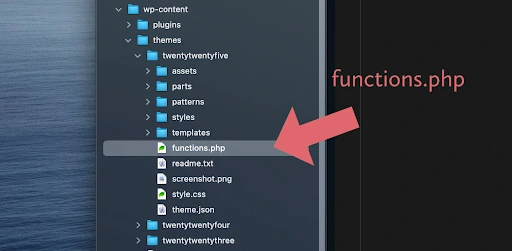
It’s relatively simple to add small features such as shortcodes, content filters, or layout tweaks using your WordPress theme’s “functions.php” file. Shortcodes are small placeholders that you can add to WordPress content to trigger predefined functionality when a viewer renders a page.
During page load, WordPress scans the content, processes all registered shortcodes, and replaces them with the predefined output you have assigned to them.
For example, you can register a basic shortcode using “add_shortcode()” inside “functions.php” to display reusable content blocks across all webpages. When the shortcode loads on a webpage, WordPress executes the callback and replaces the shortcode with its registered output.
2. Add Custom Fields Using ACF
Advanced Custom Fields (ACF) is a WordPress plugin that helps developers add structured content (content stored in clearly defined fields such as text, images, or links instead of free-form editor text) without installing multiple plugins.
It comes in handy, especially for repeatable layouts such as testimonials, project details, or service descriptions, because it keeps content consistent and easier to manage. You can create a text or image field in ACF, link it to specific pages, post types, or templates, and display it using “get_field()” in the theme file.
If you want to add more complex or reusable logic, you might still need to use a plugin-based approach.
3. Manually Add Tracking Codes
One of the things that most new developers overlook is adding analytics tools, such as Google Analytics, without using a plugin. You can add tracking scripts directly to the site’s header or footer to prevent the use of several plugins.
To add the Google Analytics script, for example, you can use “functions.php” to hook a tracking code directly to the site using “wp_head” or “wp_footer.” These hooks run or load when the footer or header of the webpage is generated, making them suitable for adding to site-wide scripts such as analytics or tracking codes.
4. Create Custom Post Types with Codes
Custom post types are different from standard posts and pages as they use a separate post type identifier in the WordPress database. This allows content to be organised and queried differently while still being stored in the same core tables of the WordPress database.
Using “register_post_type()” allows WordPress to recognise a new content type, define how it behaves in the admin area, and make it available for templates and queries.
Consider that you are creating a custom post for case studies. In that case, you can do it simply using “register_post_type()” inside “functions.php.” Using this will help store this particular data alongside other content in the WordPress database.
You can register a custom post type using WordPress core functions instead of plugins, and have greater control over the post while reducing dependencies on third-party plugins.
Tip 2. Reduce Plugin Count with Smart Alternatives
It’s a common misconception that if you reduce the number of active plugins, you’re basically removing functionality from your website. However, in most cases, you can achieve the same outcome, in terms of functionality, by consolidating features, removing overlaps, and relying more on WordPress’s core capabilities.
1. Combine Multiple Features into One Lightweight Plugin
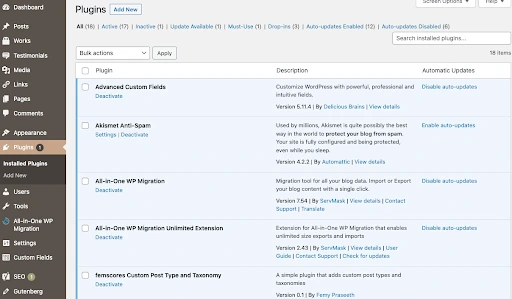
Many websites use separate plugins for tasks that could be handled using a single solution. For example, there are separate plugins for forms, notifications, and simple automation, when all of these things could be done through a utility plugin that reduces the load on the website and overhead costs simultaneously.
This approach simplifies maintenance and reduces the risk of performance issues with multiple scripts loading simultaneously.
2. Clean Up Duplicate Plugin Functionality
Over time, websites might accumulate plugins with similar or overlapping functions. For example, a website might have two plugins that both handle caching or image optimisation individually. However, you can as easily use a single plugin that performs both functions, reducing the unnecessary processing and asset loading.
To identify duplicate plugins, regular audits can help by identifying:
- Plugins offering overlapping features.
- Features already available in the active theme.
- Plugins that are no longer actively used.
3. Use Built-in Custom Post Types and Taxonomies
WordPress is one of the most popular CMS platforms because it natively supports custom post types and taxonomies, which help organise and relate content. Custom post types define content, while taxonomies classify that content.
Many sites use third-party plugins, like CPT UI, which are focused on creating and managing custom post types and taxonomies. However, WordPress has built-in custom post types and taxonomies that can be directly used within your theme’s functions.php file. You can use the register_post_type function for creating a custom post type and the register_taxonomy function to register a custom taxonomy within the init action hook.
Using built-in features keeps the site lighter, improves long-term stability, and avoids issues if a plugin is disabled or discontinued.
Tip 3. Use Theme Functions Instead of Installing Plugins
WordPress themes are already integrated with several common WordPress customisations. For example, when a child theme is active, many common changes can be implemented directly without having to install additional plugins that only solve particular problems.
In such cases, you can implement the following changes directly, without relying on third-party tools:
1. Styling and basic interactivity
Simple visual changes or small interactive behaviours don’t need a separate plugin. Instead, add CSS and JavaScript through a child theme, which inherits functionality from the parent theme while allowing safe overrides, keeping assets lightweight and predictable.
For instance, you can add custom styles to a child theme stylesheet while loading scripts using “wp_enqueue_script().”
2. Functional tweaks using theme hooks
Sometimes, we use plugins to handle minor logic, such as content visibility rules or layout adjustments. However, these behaviours can be managed easily using WordPress actions and filters inside “functions.php,” which are core mechanisms that allow themes to add or modify functionality as pages load.
Action runs at specific points in the page lifecycle to add behaviour to the content, while filters modify existing data before it is displayed, making them central to how WordPress themes control output.
3. Site-specific content structures
If a content type is used only on one website, it can be added directly through the theme instead of a plugin. This helps in keeping the content structure closely tied to the site’s design.
Tip 4. Optimise Performance with Server-Level Tools
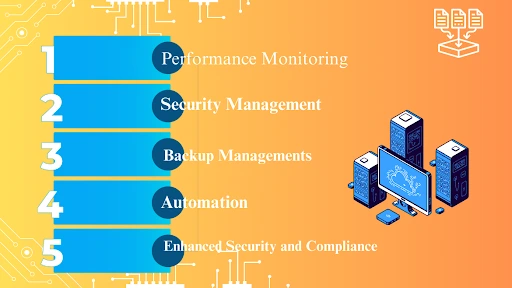
WordPress has many plugins, including those for performance improvements. However, most hosting providers already offer built-in tools that can handle performance, and do so more efficiently at the server level.
1. Use Hosting features for caching
Most managed WordPress hosts have server-side caching naturally integrated within their systems. This helps reduce load time without relying on extra plugins that load scripts or run background processes, ultimately adding more pressure on the server.
For example, you can enable page caching through your host’s dashboard and replace basic caching plugins that you might’ve installed.
2. Serve images through Cloudflare or hosting
Many hosting providers or a CDN, such as Cloudflare, can handle image delivery without relying on a plugin. A CDN, or content delivery network, is a server that stores and serves images from distributed servers in different regions.
This helps in two ways: first, it reduces dependency on plugins, and second, it allows images to load faster as CDNs can serve the images from locations close to the user.
3. Implement SSL and force HTTPS at the server level
SSL helps in the encryption of data exchanged between a website and its visitors, while HTTPS ensures that this secure connection is used consistently throughout the website. That’s why it makes sense that SSL certificates and HTTPS redirection should be handled at the server level, as it reduces reliance on security or redirection plugins and improves overall site stability. For example, you can enforce HTTPS using hosting settings or even server configuration files.
Tip 5. Use WebP and SVG Without Plugins
Modern image formats improve performance, and WordPress does not require plugins to use them when handled correctly.
1. Convert images before uploading
It’s better to convert JPEGs to WebP format using offline tools or trusted online converters before uploading them to WordPress. This helps reduce file size and improves load speed
2. Enable WebP and SVG support with minimal code
WebP is supported inherently by most modern browsers, and for SVG support, you can enable it by making minor changes in the small code. This avoids the need to install an image format plugin.
3. Use native lazy loading
WordPress and modern web browsers support lazy loading by default. Lazy loading is the process by which images only load on the screen when they are visible on the webpage. You can even add “loading=”lazy”” to image tags without having to install lazy-load plugins.
These methods keep image handling simple, fast, and free from unnecessary plugin dependency.
Final Thoughts
Using fewer plugins in WordPress doesn’t mean you should avoid plugins altogether. It means making deliberate choices that improve performance, stability, and support long-term maintenance.
Regular website maintenance by a trusted WordPress development partner, such as Designpluz, can make WordPress management easier as a team of expert WordPress developers will identify where plugins are actually adding value and where core features, theme functions, or server-level tools act as a better alternative.
Businesses that are aiming to streamline their WordPress setup and support growth without compromising performance or reliability can benefit from such development partners.